
Explore Data with Embedded AI
Explore Data with Embedded AI
Researchers can explore their Transana data with Artificial Intelligence (AI). Transana uses an AI tool called Ollama to implement embedded AI exploration of qualitative data. This Tutorial page describes how to download and install Ollama to get started, and then shows how to explore your Transana data with Ollama.
Ollama is an AI engine that you install on your own computer. It allows you to explore your data with AI without sending your data to an external AI service. This avoids the inherent risk to data security and confidentiality that sharing data with an external AI provider has.
Installing and Configuring Ollama
You will need to download, install, and configure Ollama before you can use the Explore Data with Embedded AI feature in Transana.
Please see the Setting Up Ollama page on the Transana web site for instructions on how to acomplish this. You will only need to set this up once on your computer.
Explore Transana Data with Embedded AI
Transana allows researchers to select data and craft AI Prompts to explore their data. The following ScreenCast demonstrates this process with a Transcript.
This ScreenCast refers to two pages on the Transana web site:
Setting up Ollama for first-time use.
Using AI in Transana.
Please note that the selection of the “Ministral-3:8b” model in this Screencast is just an example, not a recommendation.
Further details
Select Data to get started
To identify the data you want to explore using AI in Transana, select a Document, a PDF Document, a Transcript, a Collection, a Quote, a PDF Quote, a Clip, or a Snapshot in the Database Tree.
- Library – AI tools limit the amount of information they can import and process. Transana does not provide a way to submit an entire Library’s worth of information for AI exploration at one time. Instead, explore your Documents, PDF Documents, and Episode Transcripts individually.
- Document – To submit an entire document to AI, right-click a Document and select the Explore Document with Embedded AI option. You can also highlight a portion of an open document and press the “Explore with AI” button in the Document Toolbar to explore a selected section of the larger document. Images embedded within the document are not included in the data sent to the AI tool.
- PDF Document – To submit the text portion of a PDF document to AI, right-click a PDF Document and select the Explore Document with Embedded AI option. PDF document formatting and Images embedded within the PDF document are not included in the data sent to the AI tool. Only PDF document text, in the order determined by the PDF document file, is submitted for AI exploration.
- Episode (Media data) – Media data, audio and video files, are not submitted to AI. AI is currently much better, faster, and more accurate when working with text than with media-based data. To explore media data, create a transcript incorporating all aspects of the media file you want included in the AI exploration, then submit that transcript. (Remember, transcripts are not limited to the verbal layer of your media data. They can include a wide variety of descriptions of non-verbal information as well.)
- Transcript – To submit an entire transcript for AI exploration, right-click a Transcript and select the Explore Transcript with Embedded AI option. You can also highlight a portion of an open transcript and press the “Explore with AI” button in the Document Toolbar to explore a selected section of the larger transcript. Images embedded within the transcript are not included in the data sent to the AI tool.
- Collection – If you select a Collection for exploration with embedded AI, the data sent to the AI tool will include text from Quotes, PDF Quotes, and Clips contained in the Collection, Still images embedded in Quotes and Clips are not include, nor are Snapshots or PDF Snapshots. You will have the option to limit AI Exploration to just the current Collection or to include all items in all Nested Collections
- Quote – If you choose to explore a Quote with embedded AI, remember that your prompt should fit the size of your data. Don’t ask for an analysis of themes from a quote that’s only a sentence or two long. The longer your quote, the more complex your prompts can be.
- PDF Quote – When you right-click a PDF Quote and choose “Explore Quote with Embedded AI,” Transana will send the text associated with that PDF Quote. No image or formatting information is submitted.
- Clip – If you choose to explore a Clip with embedded AI, remember that your prompt should fit the size of your data. Don’t ask for an analysis of themes from a clip that’s only a sentence or two long. The longer your clip, the more complex your prompts can be.
- Snapshot – If you choose to explore a Snapshot with embedded AI, Transana sends the entire source image file, not just the visible portion you may have selected by changing the Snapshot Window. Coding Shapes are not included in the data sent for AI exploration.
- PDF Snapshot – PDF Snapshots cannot be explored with embedded AI from within Transana at this time.
Using Embedded AI
Unlike ChatGPT, you can use Ollama’s Embedded AI with confidential or human-subjects sensitive data. You need to make sure your Ollama configuration correctly disables Cloud mode and that you avoid “cloud” and “turbo” models in your analysis, as described in the Configuration section of the Ollama setup page. When these conditions are met, Transana’s Explore Data with Embedded AI feature does not retain or share data.
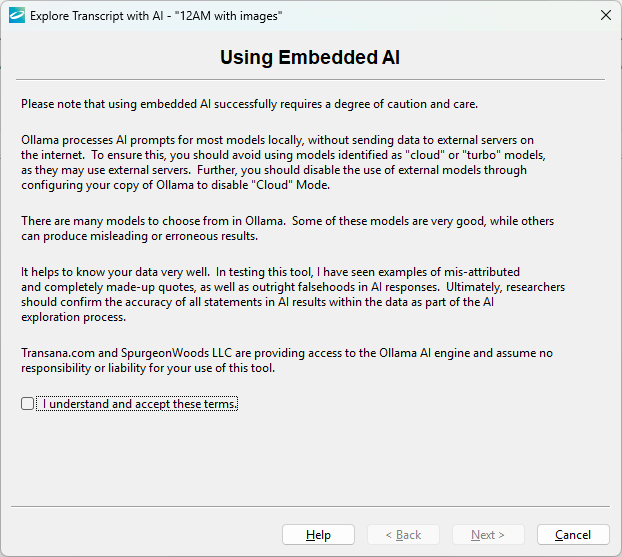
The first page of Transana’s tool for Embedded AI exploration of data lays out the tool’s terms. Researchers should select Ollama models with caution, and they must recognize the limitations of AI analysis. If you can accept the terms of use, check the box agreeing to those terms. If you cannot agree to these terms, do not use Embedded AI to explore your data.
AI Prompt, Data, and Settings
The next page handles preparing for AI exploration. There are three tabs on this page. When all three tabs are set, press the Next button to process the AI prompt defined on the AI Prompt tab with the data defined on the Data tab using the settings from the Settings tab.
The AI Prompt Tab
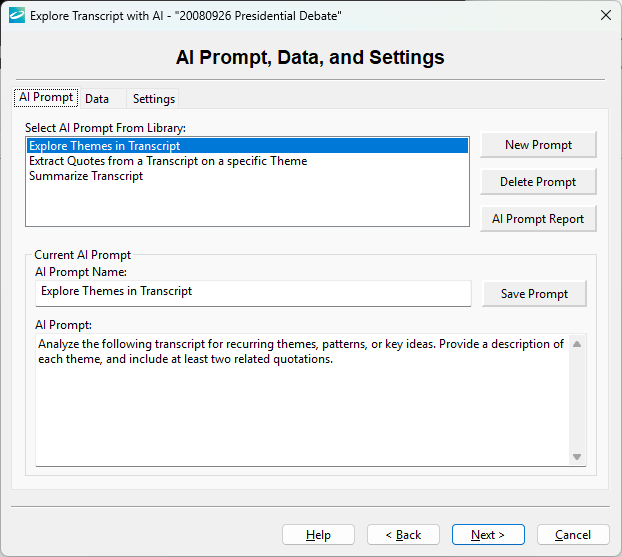
The AI Prompt Tab defines the prompt to be sent to the AI Tool. It displays your Prompts Library, and facilitates adding, editing, and deleting prompts from the library. Transana provides a few relatively simple prompts, which differ slightly depending on the type of data being explored and which you can edit.
When you are exploring items in a Collection, you can select whether you want to include items in Nested Collections.
The Data Tab
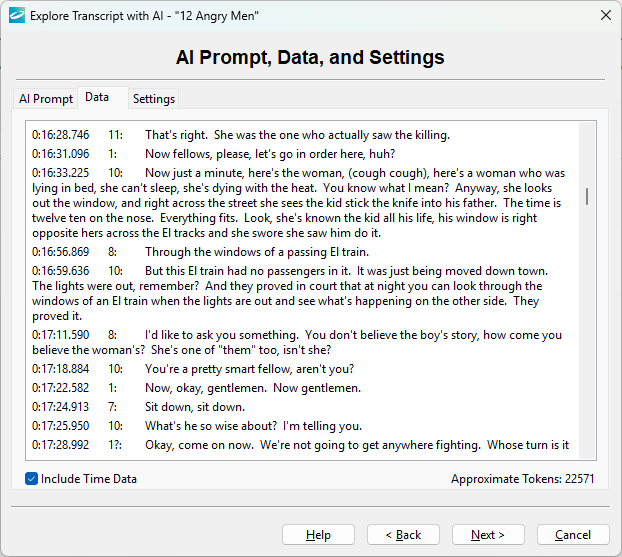
It’s always a good idea to check the Data tab so ensure that the data that is sent to the AI tool is what you expect.
Please note that Transana does not mix text and still image data. Images embedded in Documents, Transcripts, Quotes, and Clips are not included in the data sent for AI exploration. For PDF Documents and PDF Quotes, only the text extracted from the PDF is included. Explore with Embedded AI does not support PDF Snapshots. When exploring Collections, Snapshots are not included in the data assembled for AI exploration.
When you are exploring Transcripts, and Clips, you have the option to include time information. When you are exploring items in a Collection, you can select whether you want to include items in Nested Collections.
The Settings Tab
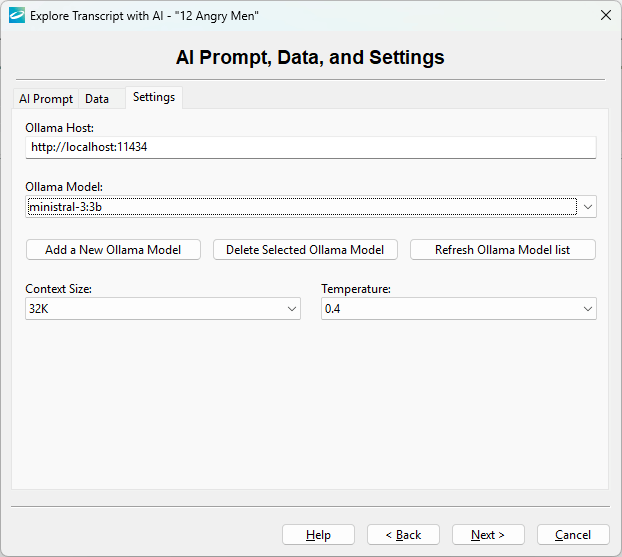
The Settings tab allows you to select an Ollama Host. In most cases, researchers will use the Ollama program running on their own computer, designated as http://localhost:11343. However, if you have Ollama set up on a faster computer on your network, you can change to that copy of Ollama by replacing the localhost portion of that host name with the IP address of the other computer.
You can select from a large number of Ollama models. See the Using AI article on the Transana web site.
The Add a New Ollama Model allows you to load a new model from the Ollama web site. The Delete Selected Ollama Model button allows you to delete a model from your Ollama server. The Refresh Ollama Model List button updates the models available in the models selection field.
Context Size refers to the amount of memory made available to the AI Model for holding the prompt and data submitted, for processing that data, and for constructing a response. The more complex your prompt and the larger your data, the larger a context size you should select. However, increasing Context Size also increases processing time for AI queries.
Temperature is an indication of the amount of randomness used in constructing AI responses. Higher values of Temperature allow for more creativity and variation in AI responses, while lower values should produce more consistent responses, allegedly with less chance of AI hallucination.
Information on the Settings tab is stored as part of your Transana configuration data.
AI Results
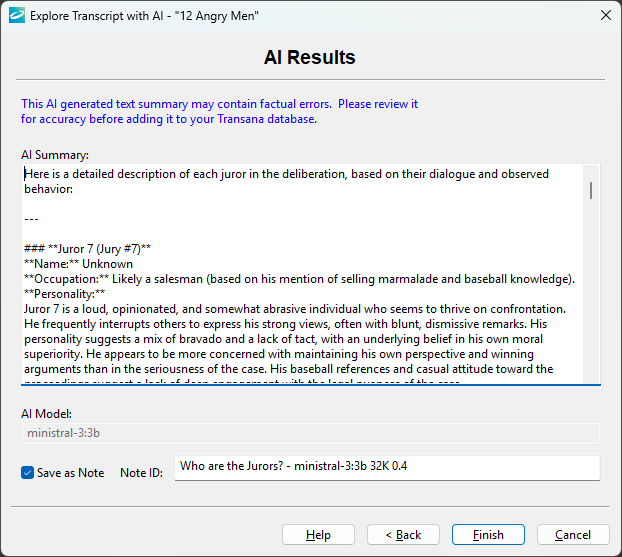
The final page of the AI Exploration page shows the results of the AI query.
It is vital that researchers approach AI results with a healthy sense of skepticism. These results sometimes provide interesting ideas and hypotheses, but other times present hallucinations and factual inaccuracies, usually stated confidentially, It is the researcher’s responsibility to review such results for accuracy.
Because of this, Transana presents AI results for review and possible editing and correction. If the AI result is useful or interesting, Transana can save it as a Note attached to the data item selected originally for AI Exploration.
Finally, you can convert this note to a Transana Document. This breaks the association with the original triggering data item, but Documents can be quoted, coded, categorized, and further explored with AI within Transana.