
FIND MISSING FILES
Find Missing Files
There are several reasons that Transana might have difficulty finding data files it needs. Maybe someone moved or renamed a file. Maybe you changed your Media Library Directory, or moved your data to a new computer with a different Media Library path. When this happens, Transana’s Find Missing Files tool can help.
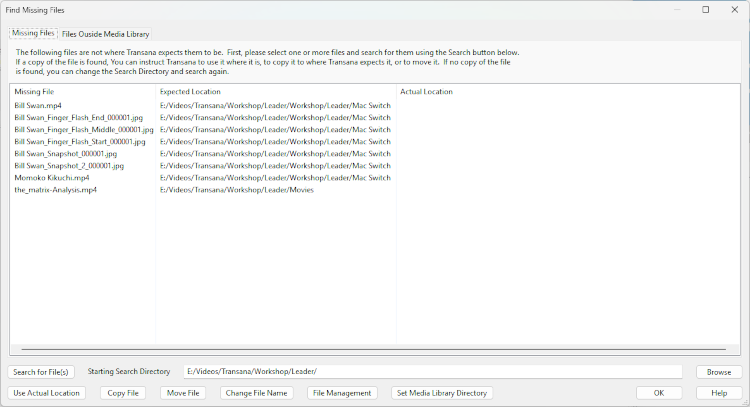
The Find Missing Files tool
Transana stores the name and file path of media, image, and PDF files in its database rather than importing the actual files. This is far faster and more efficient. This works well until someone moves or renames a file that is being analyzed within Transana.
When Transana is unable to find a data file it needs, it will show an error message indicating that the file cannot be found and will automatically load the Find Missing Files tool. You can also load this tool from Transana’s Tools menu.
NOTE: Researchers using Transana Multiuser should check their Media Library Directory to ensure it is configured correctly. All research team members must have their Media Library Directory set to the same directory or correcting a file location for one user may well cause problems for other members of the team. To change your Media LIbrary Directory, press the Set Media Library Directory button.
When the Find Missing Files tool is initially displayed, it uses the Media Library Directory as its Starting Search Directory. It assumes all media files will be within the Media Library Directory, as is best practice in Transana (and required for Multiuser).
The Search for File(s) button will search for the selected file(s) (or the top file in the list if none are selected) within the Starting Search Directory and its sub-directories. If more than one copy of the file is found, the researcher is asked to select the desired file. This button does not change any file locations; it merely tries to locate the file(s) and display their actual location.
The Use Actual Location button updates Transana’s database records for the selected file(s), setting them to the listed Actual Location or searching for them if needed. Once updated, the no-longer-missing file(s) are removed from the list.
If Transana is unable to locate a file using the Search for File(s) and Use Actual Location buttons, then this file (as named) does not reside within the subdirectories of the Starting Search Directory. In this case, change the Starting Search Directory, perhaps using its Browse button. In this circumstance, you may want to use the Copy File or Move File buttons to place the file within the Media LIbrary Directories in the Expected Location.
Use the Change FIle Name button if Transana is unable to find a file because someone changed the file’s name.
The File Management button loads Transana’s File Management tool, allowing you to copy and move files more flexibly than the Find Missing Files tool is designed to allow.
The Set Media Library Direcotry button allows you to change your Media Library Directory setting.
As files are re-connected on this form, they are removed from the form. This form will be blank when the Find Missing Files process is complete.